If you’ve watched any professional streamer or YouTuber and wondered why their video looks polished and bright while yours looks like it was filmed in a cave, the answer is almost always lighting. And if you’ve started researching the fix, you’ve probably already landed on the Elgato Key Light. For good reason.
I’ve been using the Elgato Key Light for over a year. Here’s what it’s actually like to own and use one.
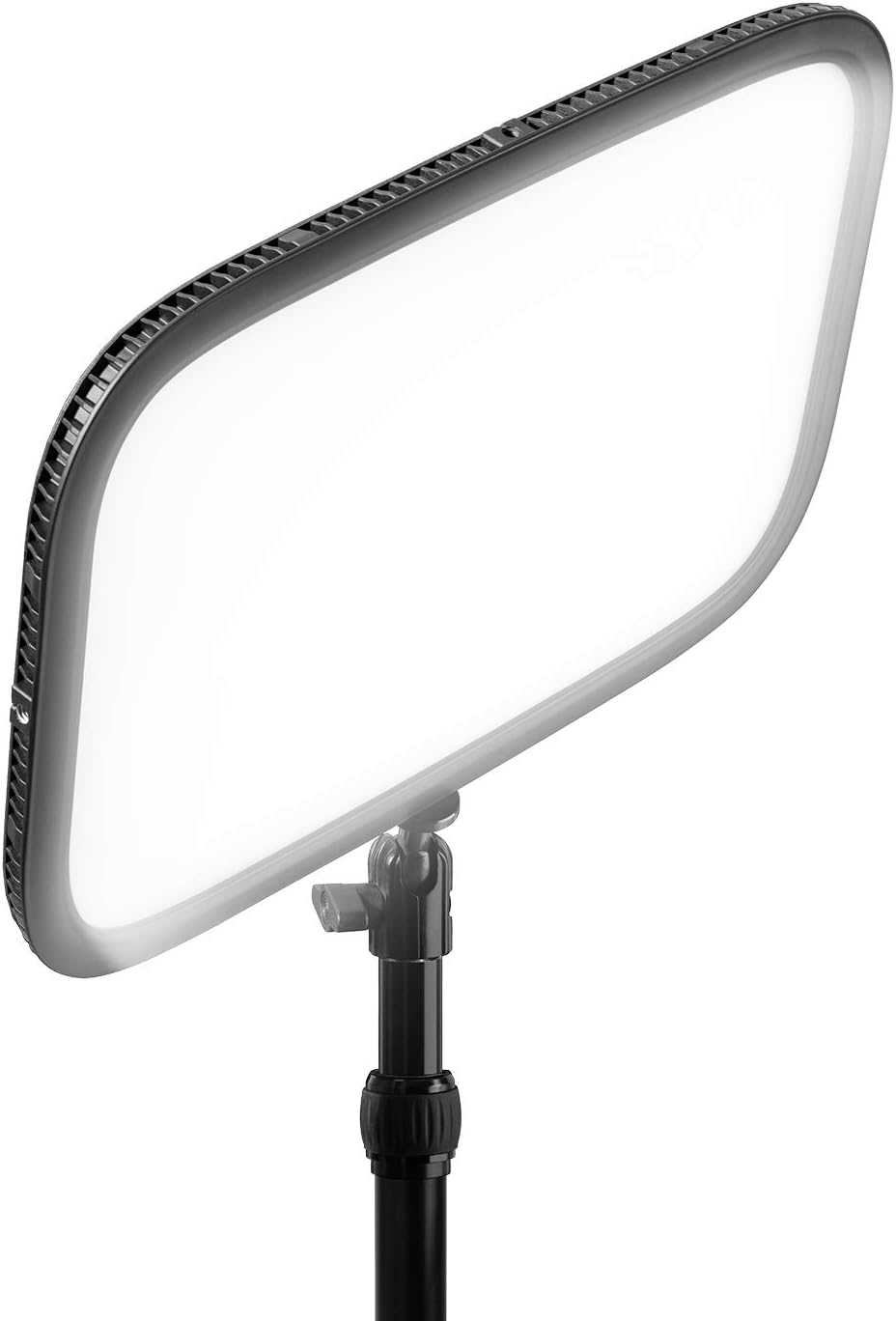
What Is the Elgato Key Light?
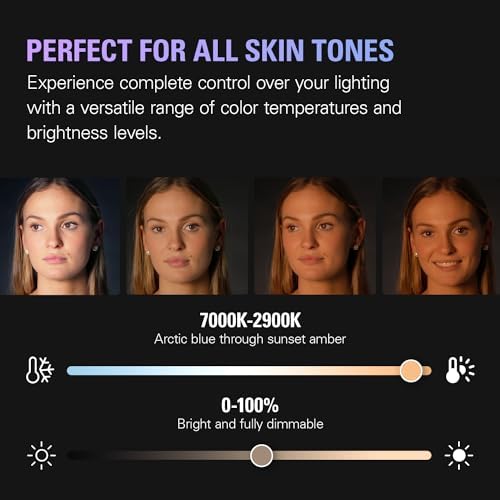
The Elgato Key Light is a professional-grade LED panel light designed for streamers, YouTubers, and video call setups. It outputs up to 2,800 lumens of soft, even light with fully adjustable brightness (0–100%) and color temperature (2,900K–7,000K). It mounts on a desk clamp and connects over Wi-Fi so you can control it from an app, a Stream Deck, or a keyboard shortcut — no reaching over to adjust it mid-stream.
Specs at a Glance
| Spec | Detail |
|---|---|
| Lumens | 2,800 |
| Color temperature | 2,900K – 7,000K |
| Brightness control | 0–100% |
| Connection | Wi-Fi (2.4GHz) |
| Control | Elgato Control Center app, Stream Deck, API |
| Mount | Desk clamp (included) |
| Panel size | 242mm × 242mm |
| Power | AC adapter (no battery) |
| Price | ~$200 |
Light Quality: The Thing That Actually Matters
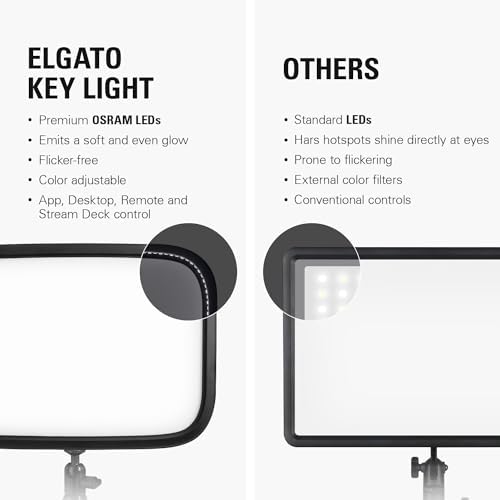
The Key Light produces soft, diffused light that flatters faces without harsh shadows. The panel uses 80 individual LEDs behind a frosted diffuser, which spreads light evenly across your face rather than creating the harsh hot spot you get from a ring light or a bare bulb.
The color temperature range is wide enough to handle any situation. At the warm end (2,900K) it feels like late-afternoon natural light — good for a cozy, intimate look. At the cool end (7,000K) it’s crisp and clinical — better for product shots or a professional broadcast look. Most people settle somewhere between 5,000K and 5,600K for a natural daylight appearance on camera.
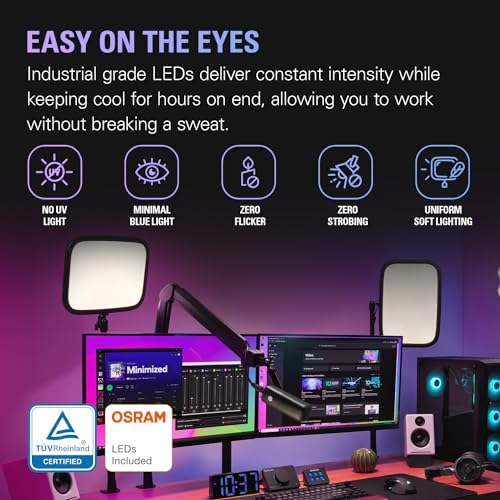
Critically, it’s flicker-free. Cheaper LED panels flicker at frequencies your eye won’t catch but your camera will — creating visible banding, especially at faster shutter speeds. The Key Light doesn’t have this problem.
Setup and Control
Setup takes about ten minutes. Mount the clamp to your desk, screw in the stand, plug into power, connect to Wi-Fi through the Elgato Control Center app. Done.
The app is clean and functional — a brightness slider and a color temperature slider on one screen. You can create presets for different scenarios (streaming, calls, recording) and switch between them instantly. Stream Deck owners can assign scenes to a button and trigger lighting changes hands-free mid-stream.
One thing to know: the Key Light requires Wi-Fi. There’s no USB or Bluetooth fallback. If your network drops, you lose software control — though the light stays on at its last setting. In practice this rarely matters, but it’s worth knowing if your home network is unreliable.
Build Quality
Solid throughout. The desk clamp is metal and grips surfaces up to 60mm thick. The arm holds its position without creeping over time. The panel itself has no flex or rattle. The AC-only power cable constrains placement slightly — you need an outlet within reach — but it’s the right call for a light this bright. Battery-powered equivalents either dim fast or drain fast.
Placement Tips
- Position at eye level or slightly above, angled down 30–45 degrees toward your face
- Place it at a 45-degree angle to the side of your camera — adds depth and avoids the flat ring-light look
- Sit 60–90cm away from the panel for the best softness-to-intensity ratio
- Add a second light or white reflector opposite the Key Light to fill in shadows
Elgato Key Light vs Ring Light
Ring lights cost $30–60. The Key Light costs $200. Is the gap worth it?
For occasional video calls, a ring light is fine. For regular streaming, YouTube, or anything you want to look genuinely professional, the Key Light wins on every dimension that matters: light quality, color accuracy, control flexibility, and flicker performance. The circular ring-light reflection in your eyes also immediately signals budget setup to anyone paying attention — the Key Light’s panel shape is far less obvious.
What I’d Change
- The price. $200 for a light is a lot. Elgato knows they own this market and price accordingly.
- Wi-Fi only. A USB fallback would simplify setup and remove the network dependency.
Who Should Buy the Elgato Key Light
- You stream or record video multiple times per week
- You’re unhappy with how you look on camera and want a real, lasting fix
- You already have a quality camera and mic and want to complete the setup
- You use a Stream Deck and want hands-free lighting control
Check the Elgato Key Light on Amazon →
The Verdict
The Elgato Key Light is the best studio light for most streamers and content creators. The light quality is excellent, the app control is genuinely useful, and the build is solid enough to last years. It’s expensive — but lighting is the single most visible upgrade you can make to your setup, and this one shows up every single stream.
Frequently Asked Questions
Frequently Asked Questions
Is the Elgato Key Light worth the money?
For regular streamers and YouTubers, yes. The light quality, app control, and flicker-free output are noticeably better than budget alternatives. Casual users may find a cheaper ring light sufficient.
Does the Elgato Key Light need Wi-Fi?
Yes. The Key Light connects over 2.4GHz Wi-Fi for app and Stream Deck control. It stays on at its last setting if Wi-Fi drops, but you need Wi-Fi to change brightness or color temperature remotely.
How far should the Elgato Key Light be from your face?
Most users find 60–90cm (about 2–3 feet) works well. Closer gives softer light; farther reduces intensity. Position it at a 45-degree angle to the side of your camera for the most flattering result.
Do I need two Elgato Key Lights?
One is enough for most setups. A second light eliminates shadows on the opposite side of your face for a more even, broadcast-quality look. Two is the professional standard if budget allows.
Can I use the Elgato Key Light for video calls?
Absolutely. It works with any video application — Zoom, Teams, Google Meet — not just streaming. You can save a separate preset for calls and switch between streaming and call settings instantly.